


NiuClaw IM Bot Configuration Guide (Beginner-Friendly, One Step One Image)
Goal: Connect WeChat / DingTalk / Feishu, etc. to NiuClaw.
Path:Settings → IM Bot(not "Email").
Figure notes: Use the full actual settings screenshot; scan the WeChat QR code in your own client; the document does not include a real code.
Step 1: Open "IM Bot"
- Bottom left Settings or Ctrl+,
- Click on the left IM bot
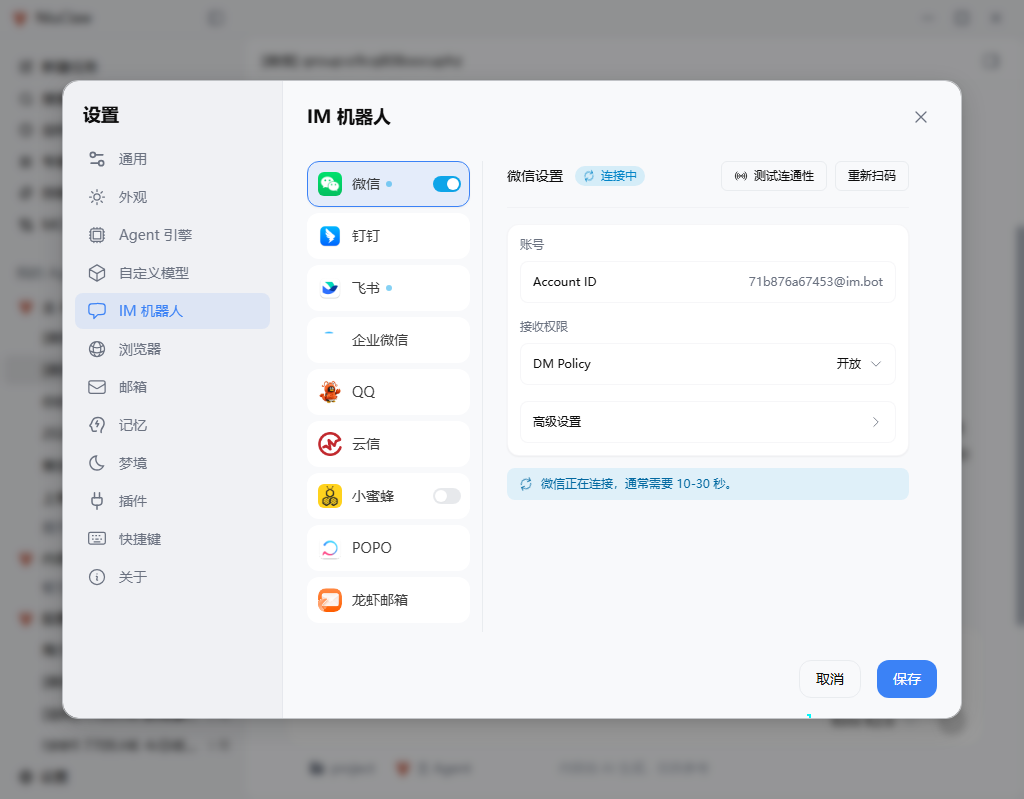
Step 2: Select a platform and turn on the switch
Click in the middle column WeChat(or DingTalk, Feishu, etc.), turn on the blue switch.
The platform details appear on the right.
Step 3: Connect
WeChat: Click Scan QR Code / Rescan → Scan with mobile WeChat to confirm → wait for "Connecting" to finish (about 10–30 seconds) → you can click Test connectivity。
DingTalk: Enter Client ID, Client Secret (subject to DingTalk Open Platform) → Test → Save.
Feishu: Enter App ID, App Secret → publish the app and enable bot permissions → Test → Save.
Step 4: Save
Click the bottom right Save。
Step 5: Bind to Agent
- Left side of the main interface My Agent → Edit target Agent
- Open IM Channel, check the connected platform(s)
- After saving, send a message in WeChat/DingTalk
The sidebar will show sessions with [微信] and other markers. For sessions created by IM, the desktop input box may be read-only; please continue chatting on the original platform.
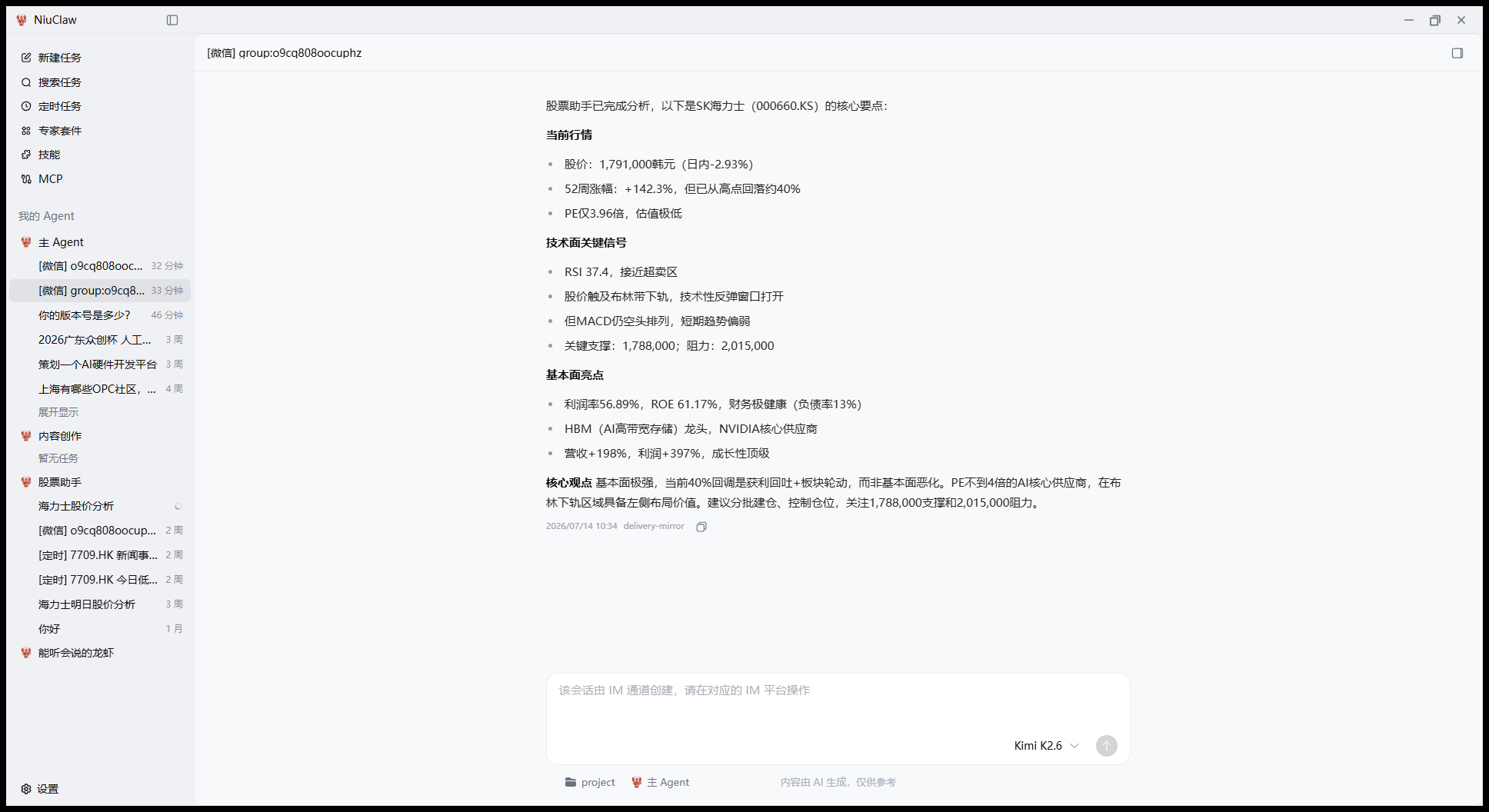
For more detailed multi-Agent instructions, see:Multi-Agent Usage Guide。
Note
- Keep NiuClaw running locally
- For scheduled push, use the sidebar Scheduled Tasks, do not look for the old "Group Webhook" category on the IM page
Contact & Feedback
- Email:NiuClaw@binxinai.cn
- Community: https://www.bixinai.cn/NiuClaw/user_community/NiuClaw_user_community.html
- Manual: https://www.bixinai.cn/NiuClaw/user_guide/NiuClaw_user_manual.html