NiuClaw Model Configuration Guide (Beginner Step-by-Step with Images)
Goal: Connect models such as DeepSeek to NiuClaw so they can be selected in the chat box.
Cost: API fees are charged by the model service provider; NiuClaw does not deduct them on your behalf.
Figure notes: The screenshots below are full images of the actual settings interface (no error-prone red boxes overlaid). If your local interface differs slightly, refer to the software.
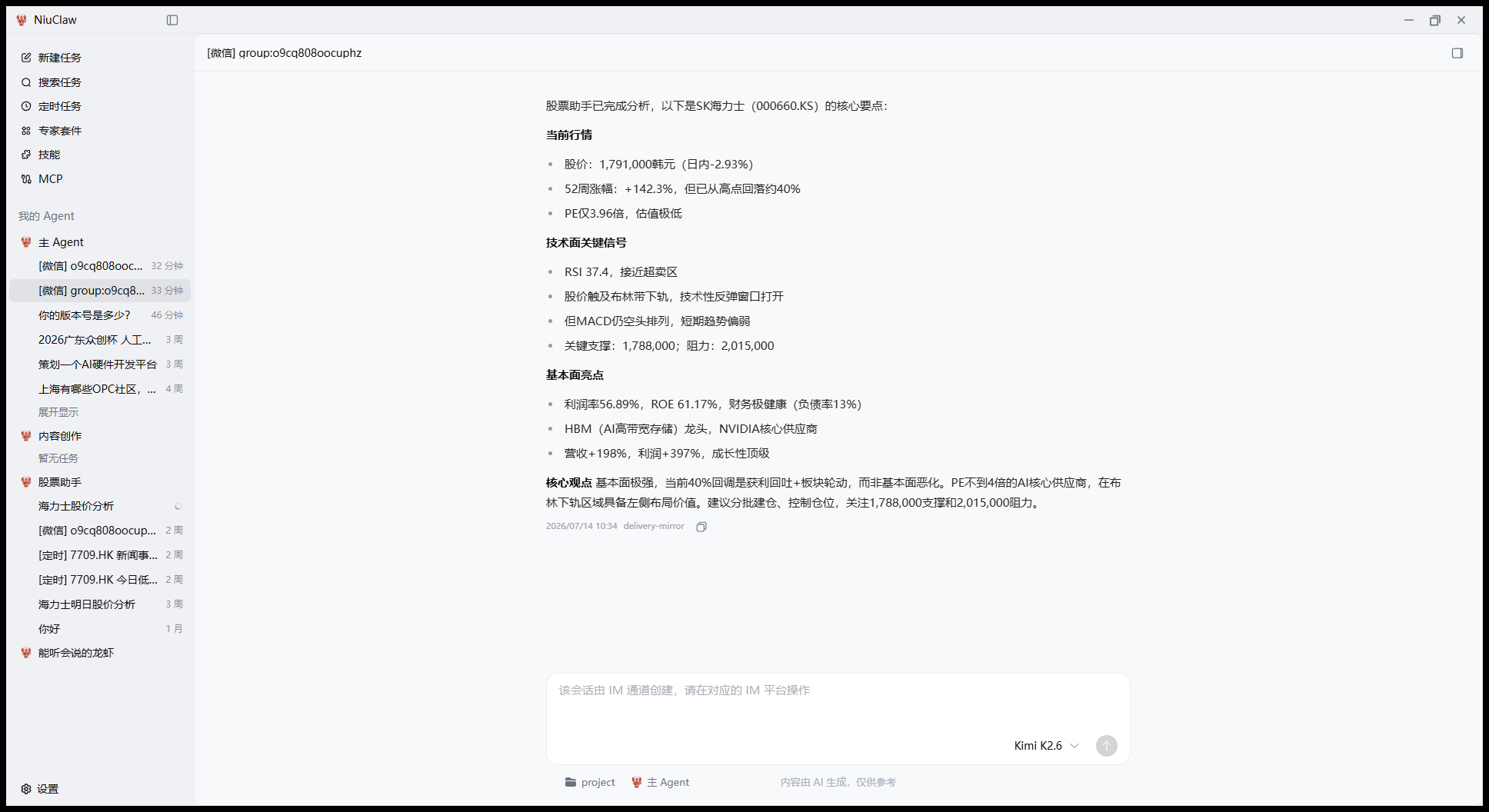
Step 1: Open Settings
- Bring the NiuClaw window to the foreground
- Click the lower-left corner of the main interface Settings(gear), or press Ctrl+,
Step 2: Go to “Custom Models”
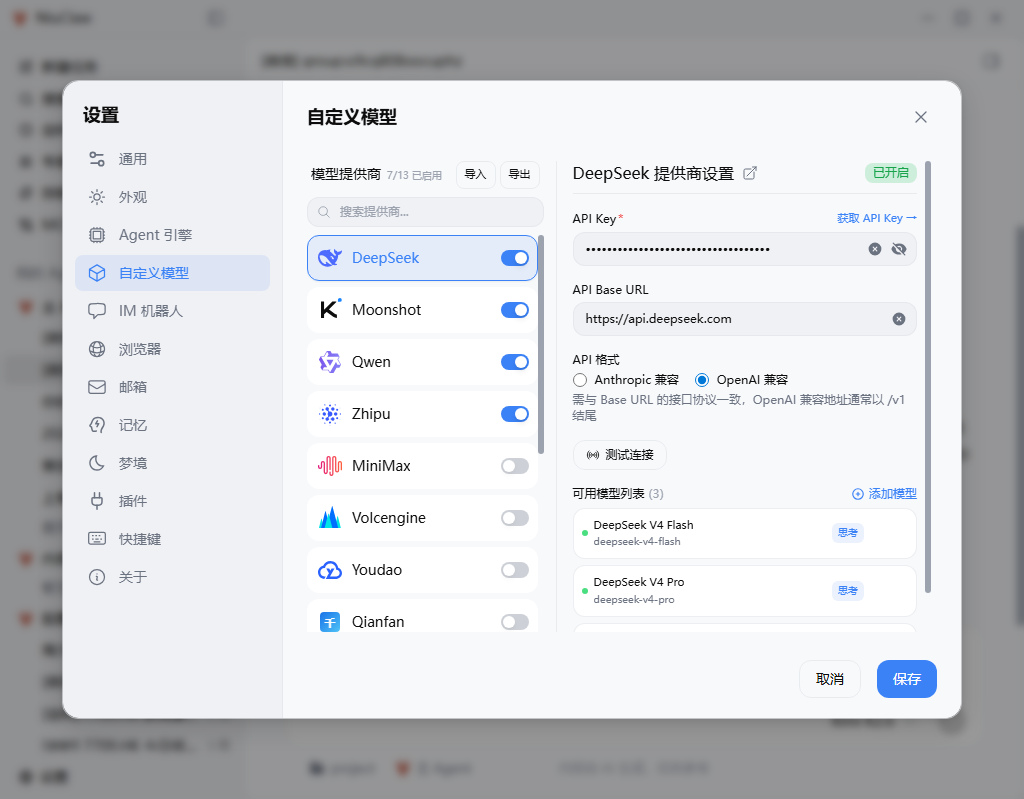
After Settings opens, click on the left Custom Models。
The middle is the provider list; the right side shows details for the current provider.
Step 3: Turn on the provider switch
- Find the provider in the middle list (recommended for beginners DeepSeek)
- Turn on the switch (blue means on)
- Click the row, and a detailed form appears on the right
Step 4: Fill in the API Key
- No Key: click on the right “Get API Key →” Go to the official website to register and copy
- Paste into API Key
- Verify API Base URL、API Format(DeepSeek is often OpenAI-compatible; refer to the on-page prompt)
Step 5: Test Connection
Click Test Connection. If successful, continue; if it fails, check Key, balance, format, network/proxy.
Below Available Models List You can add or remove specific model names.
Step 6: Save
Click the blue at the bottom right Save. If not saved, it will not take effect.
Step 7: Select a model on the main screen
Return to the chat area, select the newly configured model from the model dropdown next to the input box, and you can start chatting.
Other providers
The steps are the same; just change the provider and get the Key from the official website: Moonshot, Qwen, Zhipu, MiniMax, Volcano, etc.; locally you can use Ollama (local service must be running).
Available Import / Export Migrate provider configuration.
FAQ
- Test failed: Key / Base URL / API Format / Balance / Proxy
- No model in the chat: Has it been saved? Is the switch turned on?
Contact & Feedback
- Email:NiuClaw@binxinai.cn
- Community: https://www.bixinai.cn/NiuClaw/user_community/NiuClaw_user_community.html
- Manual: https://www.bixinai.cn/NiuClaw/user_guide/NiuClaw_user_manual.html