
NiuClaw User Manual
A 24/7 NiuClaw Agent assistant that helps you get things done effortlessly
Quick Start
What is NiuClaw?
NiuClaw is an AI Agent desktop application that runs locally. It uses the built-in OpenClaw engine to drive multi-turn conversations and tool calls, and through Skills、Expert Kits、MCP、Scheduled Tasks and IM bot, connecting daily office work, R&D, content creation, information retrieval, and other tasks into repeatable workflows.
You can chat directly in the desktop app, or connect the same Agent to WeChat, Feishu, DingTalk, and other IM platforms, so it can stand by in work groups.
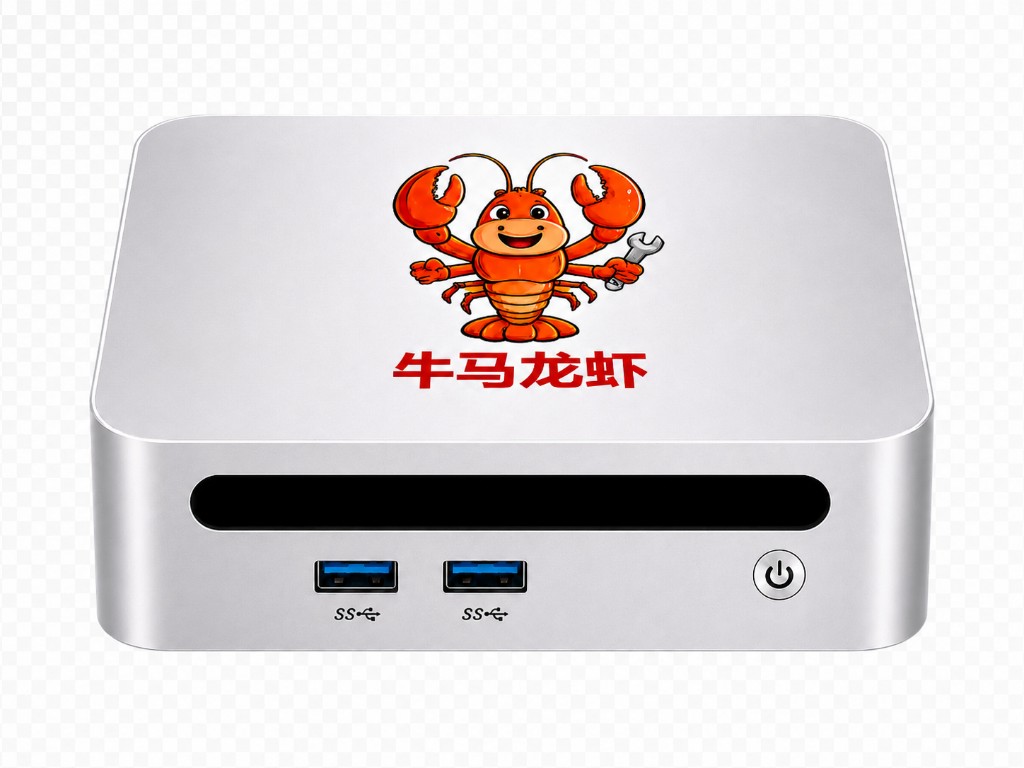
Companion AI PC series hardware
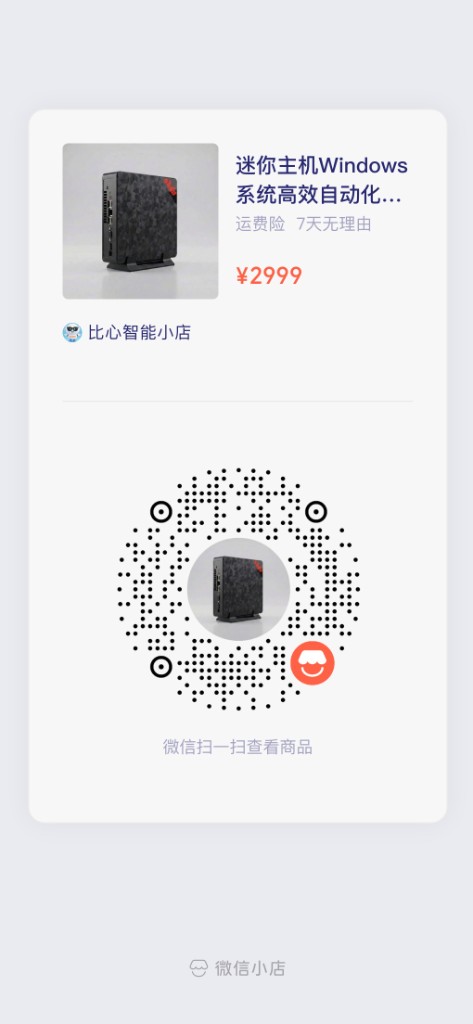
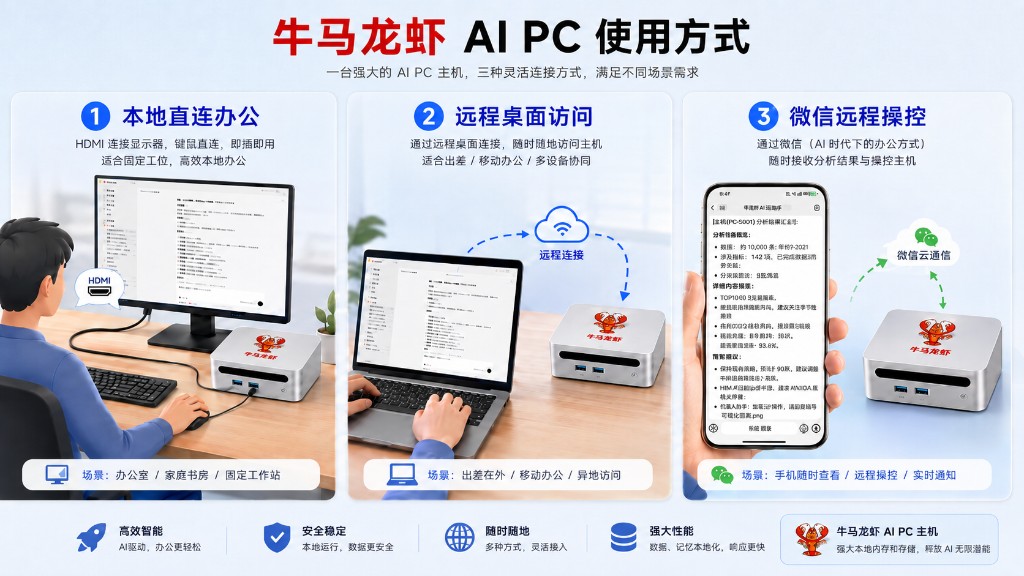
NiuClaw can be used with the companion mini PC for out-of-the-box local automated office work. The host supports Local direct-connect office work、Remote desktop access、WeChat remote control Three ways. On the right, scan the WeChat QR code to view product details in the BixinAI shop.
Usage overview (click to enlarge)
Advantages of NiuClaw compared with software assistants such as WorkBuddy
When AI is doing the work, what difference does a dedicated device make?
From closing the laptop lid to home learning, seven scenarios at a glance.
01The laptop enters sleep after the lid is closed
Tasks that rely on this laptop pause when the computer sleeps.
Tasks stay resident on NiuClaw and continue even with the laptop lid closed.
The device stays powered, online, sleep-disabled, and with services running; tasks are configured independently.02WeChat, Tencent Meeting, and CapCut open at the same time
When the agent opens web pages and processes files, it is more prone to lag when memory is tight.
Local independent compute handles AI tasks on the device, while your computer focuses on meetings and editing.
This item corresponds to the local independent compute of NiuClaw S1.03Long-term memory and personal data management
Installed on the office laptop, the AI's local environment and daily use remain on the same device.
N1 / N1 mini stores agent memory locally, accumulating long-term context separately.
04Want to set up a dedicated working environment for AI
If you want independent always-on operation, you need to prepare a separate host and configure the runtime environment.
The OS and hardware are adapted around agent work scenarios, and used with skills and task management.
05Take the laptop out to meet clients
In computer-connection mode, local tasks require this computer to stay online and running.
Through the configured WeChat, Feishu, DingTalk, or remote desktop entry point, continue to assign tasks and receive results.
06Separate personal AI exploration from workplace office work
Personal interest research and daily creation also need to use this work device.
NiuClaw stays at home, the workplace computer focuses on work, and personal data and creations have their own space.
07The whole family learns and uses AI together
Adults working and children learning use the same computer, so device time needs coordination.
Parents accompany children to practice asking questions, coding, and creating, with learning materials and works organized in one place.
Core capabilities overview
- Multi-Agent: Beyond the main Agent, you can create dedicated assistants (such as content creation, stock assistant), each with independent persona, skills, and task lists
- Multi-model: Custom integration with DeepSeek, Moonshot, Qwen, Anthropic, OpenAI, and more than ten other providers
- Skill library: Built-in skills for documents/spreadsheets/PPT/PDF, web search, browser automation, stock analysis, content creation, etc., approximately 28 skills
- Expert Kits: One-click install capability packs by scenario (engineering, design, product, marketing, etc.)
- MCP: Install from the marketplace or customize MCP services to extend external tools
- Scheduled Tasks: Run Agents automatically on a schedule and push results to your local machine or IM
- Memory and dreams: Long-term memory retrieval + background consolidation (Dream Diary)
First launch (step-by-step with images)
- After agreeing to the privacy agreement, on the welcome page, please click “Configure and Start”(“NiuClaw Model Service” is coming soon).
- Open Settings to complete Custom Models. For detailed illustrated steps, see Model Configuration Guide。
① Click Settings in the lower-left corner (or Ctrl+,) → go to “Custom Models”
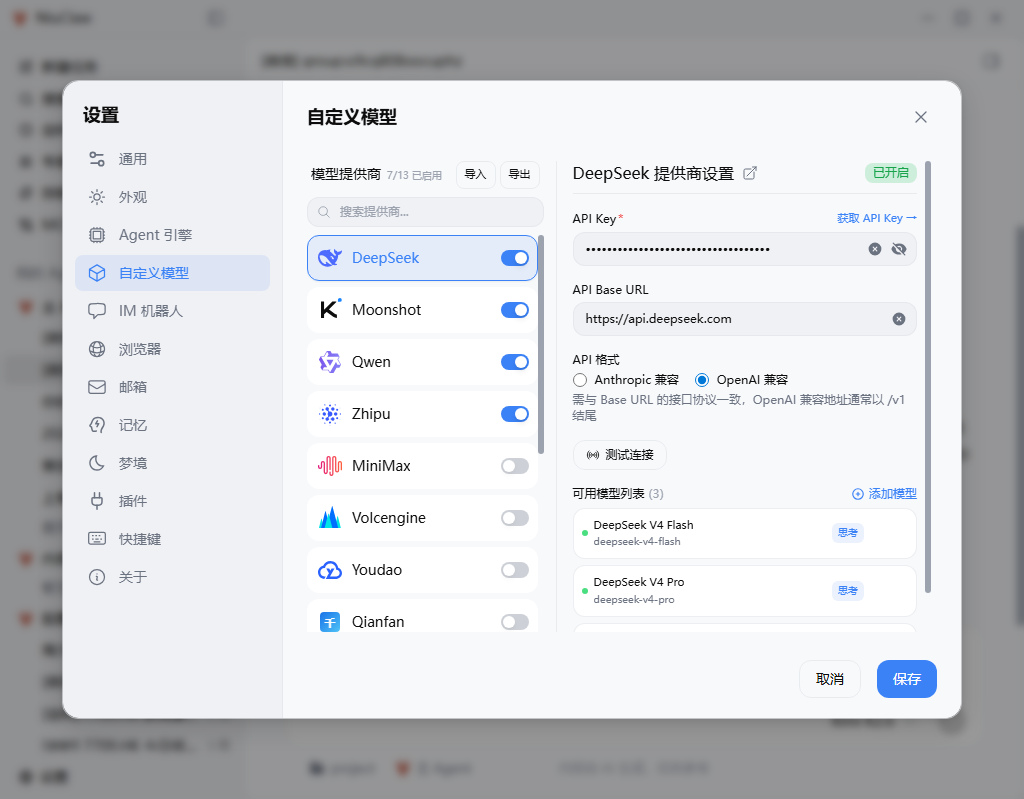
② Turn on the provider toggle → enter API Key → test connection → save → select model on the main interface
Main interface overview:
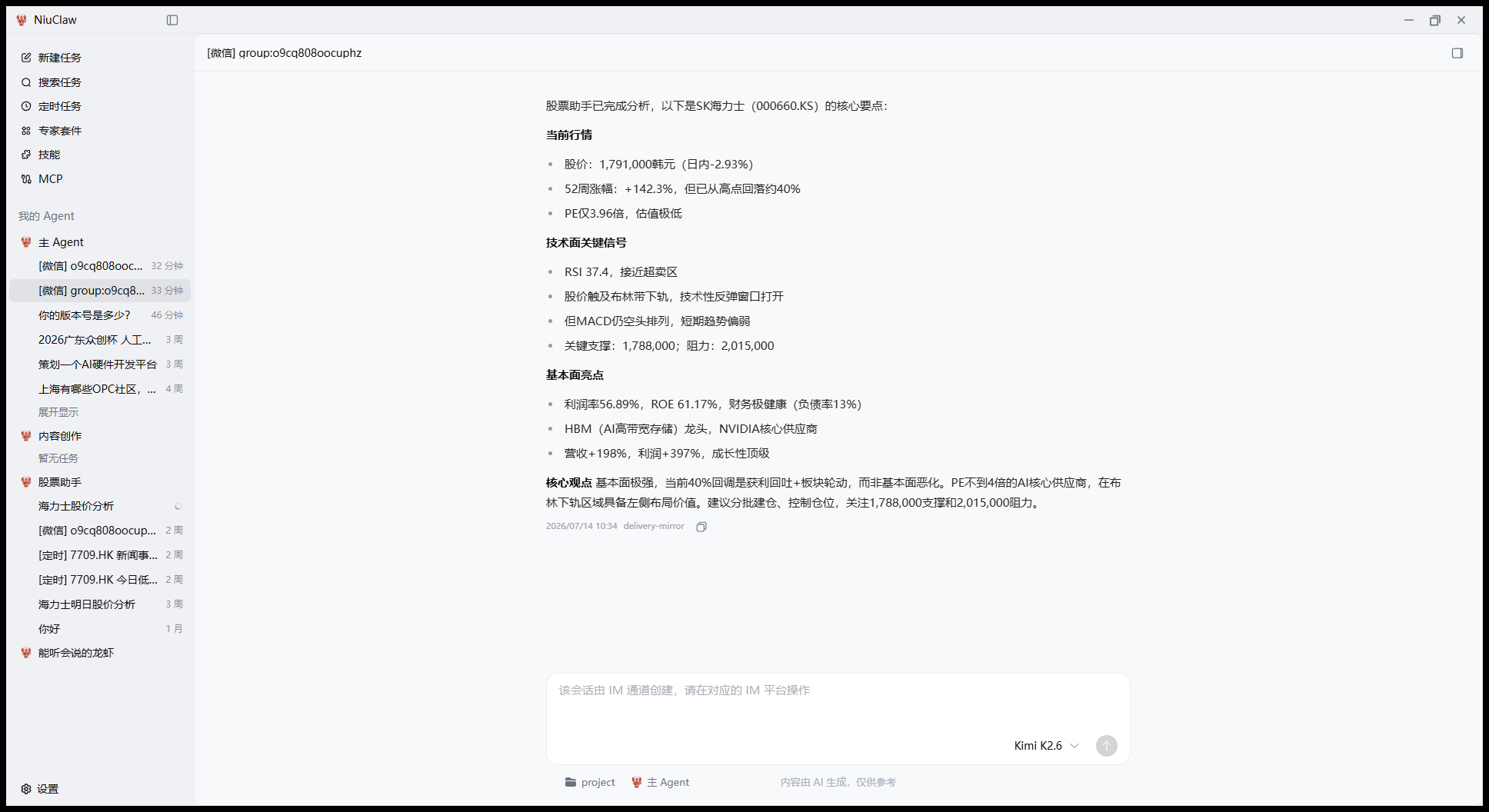
Step-by-step instructions for email, IM, and multi-Agent are in the corresponding sidebar guide (the email section uses real configuration screenshots).
Getting to know the main interface
The main interface is roughly divided from left to right into:Sidebar navigation、My Agents / Task list、Conversation and results area。
Sidebar entry points
- New task: Start a new conversation under the current Agent
- Search tasks: Find historical conversations by keyword and jump to them
- Scheduled Tasks: Manage automatically executed scheduled tasks
- Expert Kits: Browse/install scenario capability packs
- Skills: Enable, import, and manage skills
- MCP: Install and configure MCP services
The bottom is Settings. The consumer edition sidebar does not provide an account login/token issuance entry; models mainly use your own API Key.
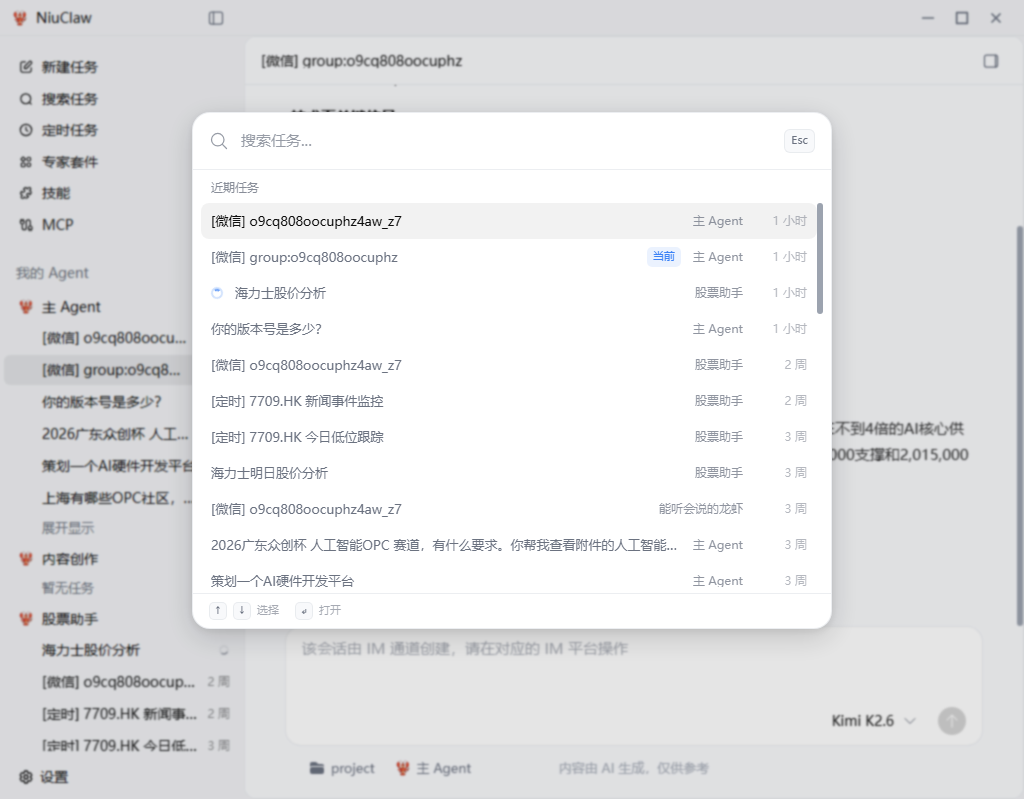
My Agent (Multi-Agent)
In the middle of the sidebar My Agent Display tasks grouped by assistant:
- Main Agent: default assistant, cannot be deleted
- Other Agents: can be created (name, avatar, identity description, system prompt, default model, working directory, skill subset, IM binding, etc.)
- Tasks under each Agent can be created, pinned, and batch deleted
- Common markers in the list:
[微信]/[飞书]etc. indicate IM conversations,[定时]indicates it is generated by a scheduled task
Suggestion: Split different businesses into different Agents (for example, the "Stock Assistant" only enables stock-related skills) to avoid mixing personas and tools.
Conversation area
- Supports multi-turn conversations, Markdown/code highlighting, attachments, and working directory context
- The current model can be switched at the bottom (only models enabled in "Custom Models" will appear)
- Conversations created via the IM channel often prompt "Please operate in the corresponding IM platform"; in this case, continue chatting in WeChat or other clients, and the results will still sync to the desktop list.
- Footer tip:Content is generated by AI, for reference only
Configure AI models
Path:Settings → Custom Models(or enter from the first-time welcome page).
Steps
- Turn on the required provider switch in the middle list (the header will display the number of "Enabled").
- Fill in on the right API Key, verify API Base URL and API Format(OpenAI compatible / Anthropic compatible must match the endpoint).
- Click Test Connection, after confirmation passes Save。
- You can add or remove specific model names in the "Available Models List"; labels such as "Thinking" next to list items indicate model capability hints.
- Supports provider configuration Import / Export, making it easy to migrate to a new machine.
Selection tips
- For networks in China, prioritize DeepSeek, Moonshot, Qwen, Zhipu, etc.
- When long context or strong reasoning is needed, switch models based on the task; you don't have to use only one.
- For local privacy scenarios, connect local endpoints such as Ollama (the service must already be installed on the local machine)
Skill system
Path: Sidebar Skills。
Skills are toggleable capability packs: once enabled, the Agent automatically invokes the corresponding tools and workflows for relevant tasks. Multiple skills can be enabled at once; you can also limit a skill subset within a single Agent.
Common usage
- Open Skills page, browse official skills or import from Marketplace / GitHub / ClawHub
- Use toggles to enable the skills you need; before installing third-party skills, you can first assess them with security review-related capabilities
- Return to the conversation and describe the goal, for example "use the current spreadsheet to create a pivot table and output a PPT"
Built-in skills overview
- Office documents:
docxWord ·xlsxSpreadsheet ·pptxPresentation ·pdf - R&D and design:
frontend-design·canvas-design·create-plan·develop-web-game·remotionVideo - Browser and search:
web-search·playwright·daily-trending - Stocks and news:
stock-analyzer·stock-announcements·stock-explorer·technology-news-search(disabled by default) - Content creation:
content-planner·article-writer - Email and notes:
imap-smtp-email·youdaonote - Media search:
films-search·music-search·seedream/seedance(requires the corresponding service) - Local machine and extensions:
local-tools·weather·skill-creator·skill-vetter
The complete list is based on the client Skills page; for configuration sources, see the app's built-in skill list.
Expert Kits
Path: Sidebar Expert Kits。
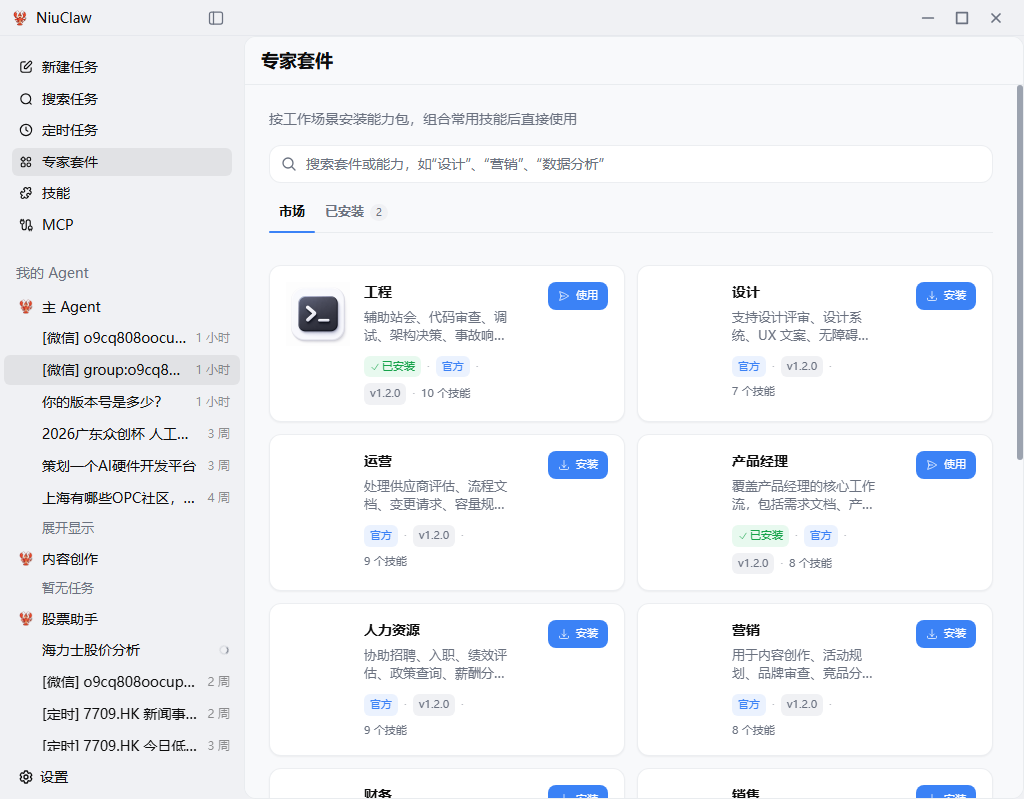
Expert suites package commonly used skills and personas for the same business scenario. For example, engineering, design, operations, product manager, human resources, marketing, finance, sales, etc.
Usage:
- In Marketplace Browse suites, click Install
- to Installed to view, or in the conversation Use suite
- The Agent will inject the skill combination according to the suite; generated documents may include suite-related attribution notes
Suitable for users who don't want to enable skills one by one and want out-of-the-box use by role.
MCP (external tool extension)
Path: Sidebar MCP。
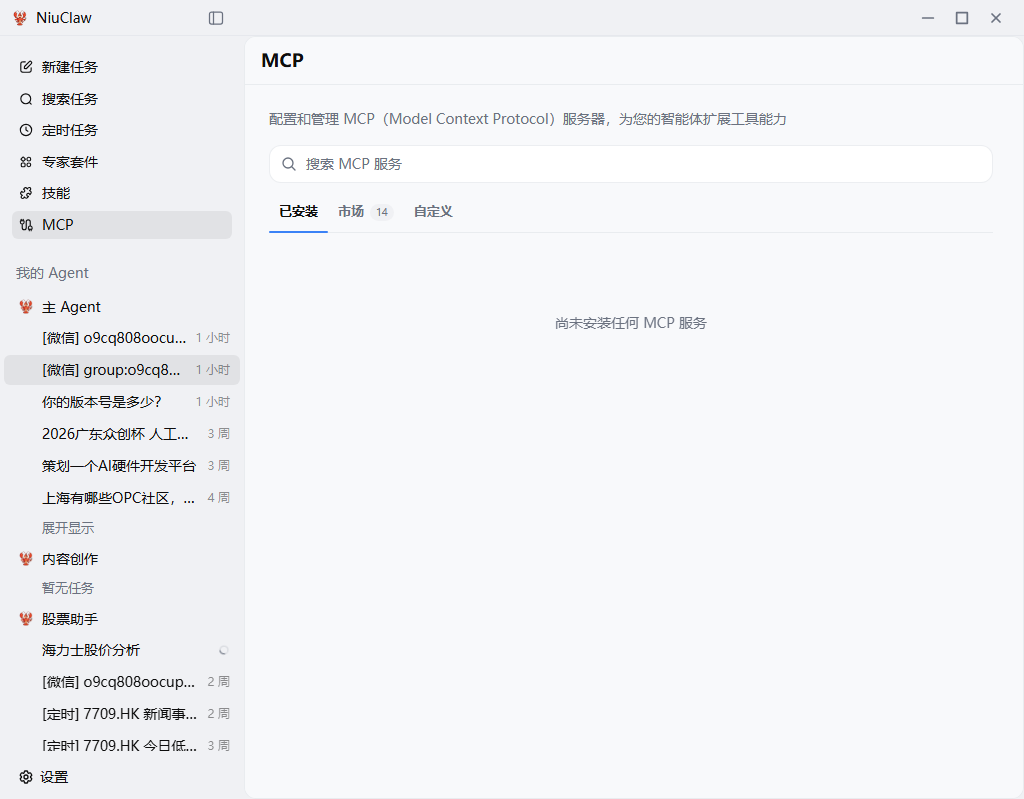
MCP (Model Context Protocol) is used to attach external services to the Agent toolchain.
- Installed: Currently available MCP services
- Marketplace: One-click install official or featured services
- Custom: Connect self-built MCP via JSON / manual configuration
After installation and saving, the relevant Agent can call these external tools (such as enterprise data, retrieval APIs, etc.).
Scheduled Tasks
Path: Sidebar Scheduled Tasks。
Used for periodic automatic execution: tech morning briefings, market close reviews, weekly report organization, stock price alerts, etc.
Typical steps:
- Create a scheduled task and fill in the prompt (tell the Agent what to do)
- Select schedule (daily / weekly / Cron, etc.), model, and working directory
- Bind IM notifications as needed; scheduled results can be pushed to WeChat groups, etc.
- View each execution record in task history
In the sidebar task list, items with [定时] marked entries, mostly from this type of automated execution.
IM bot
Path:Settings → IM Bot。
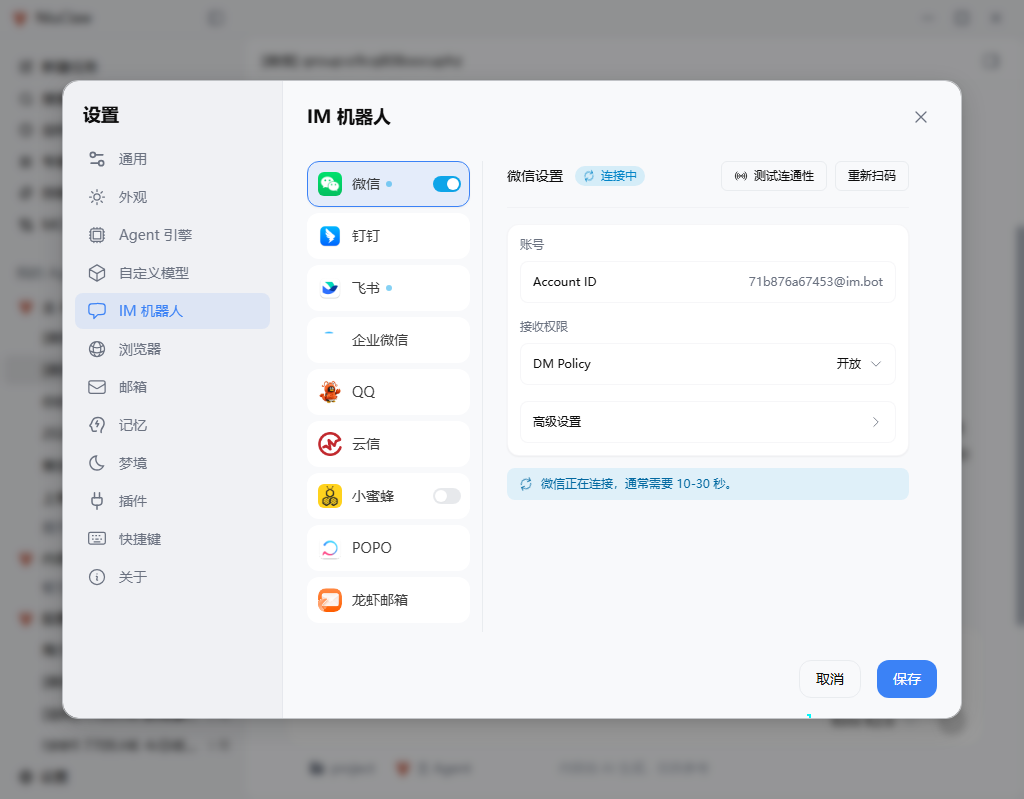
After connecting the desktop Agent to instant messaging, you can directly @ / chat with the same assistant in group chats or private chats.
Supported platforms (refer to the client list)
WeChat, DingTalk, Feishu, WeCom, QQ, Yunxin, Xiaomifeng, POPO, Lobster Mail, etc.; some platforms connect via QR code, some via token / credentials.
Recommended configuration
- Turn on the corresponding platform switch, complete QR code scanning or fill in credentials
- Use Test connectivity; WeChat, etc. may prompt "Connecting, usually 10–30 seconds"
- Set receive permissions (e.g., private chat policy), advanced options, and bind the corresponding Agent
- Save Afterward, ask questions in IM; the desktop sidebar will show
[微信]and other source tasks
Note: For sessions created by IM, the desktop input box may be read-only; please continue operating in IM.
Settings center explained
Shortcuts Ctrl+, Open settings. The categories on the left are as follows.
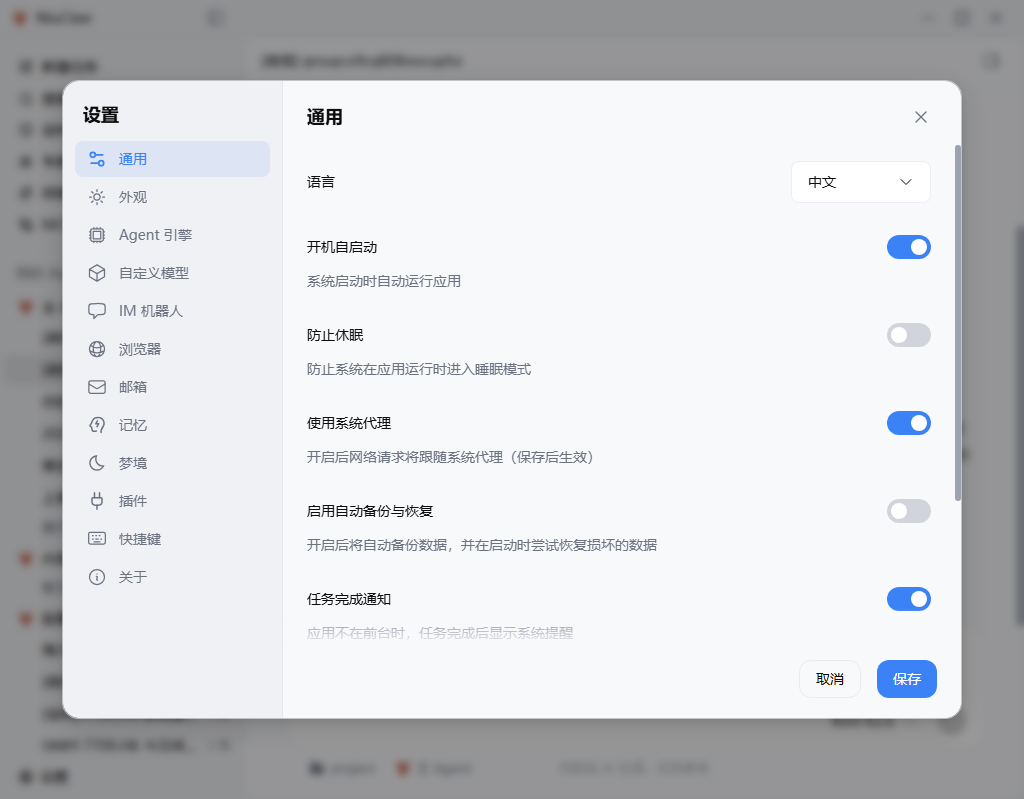
General
- Interface language (Chinese / English)
- Launch at startup, prevent sleep, follow system proxy
- Automatic backup and restore (SQLite data)
- Task completion system notification
- Other startup and statistics-related options
Appearance
Theme / follow system, theme color, interface font size, and code font size.
Agent Engine
The default engine is OpenClaw:
- View gateway running status and address
- Background heartbeat (idle inspection reminder)
- One-click repairGateway configuration (will not clear chats, models, skills, or workspace)
- Session persistence and other engine items
- "Data backup / migration" showing as coming soon means it is not yet available to the consumer edition
Tasks in the local environment execute tool calls. Please note local permissions, and be cautious with third-party skills. The consumer edition does not require installing a separate "sandbox VM" per old documentation.
Custom Models
See "Configure AI models" above.
IM bot
See "IM bot" above.
Browser
Control whether the Agent uses a browser, a standalone browser or local Chrome, network strictness, domain allow/block, scraping and diagnostics, etc. Before doing web automation or search-type tasks, it is recommended to confirm the policy here first.
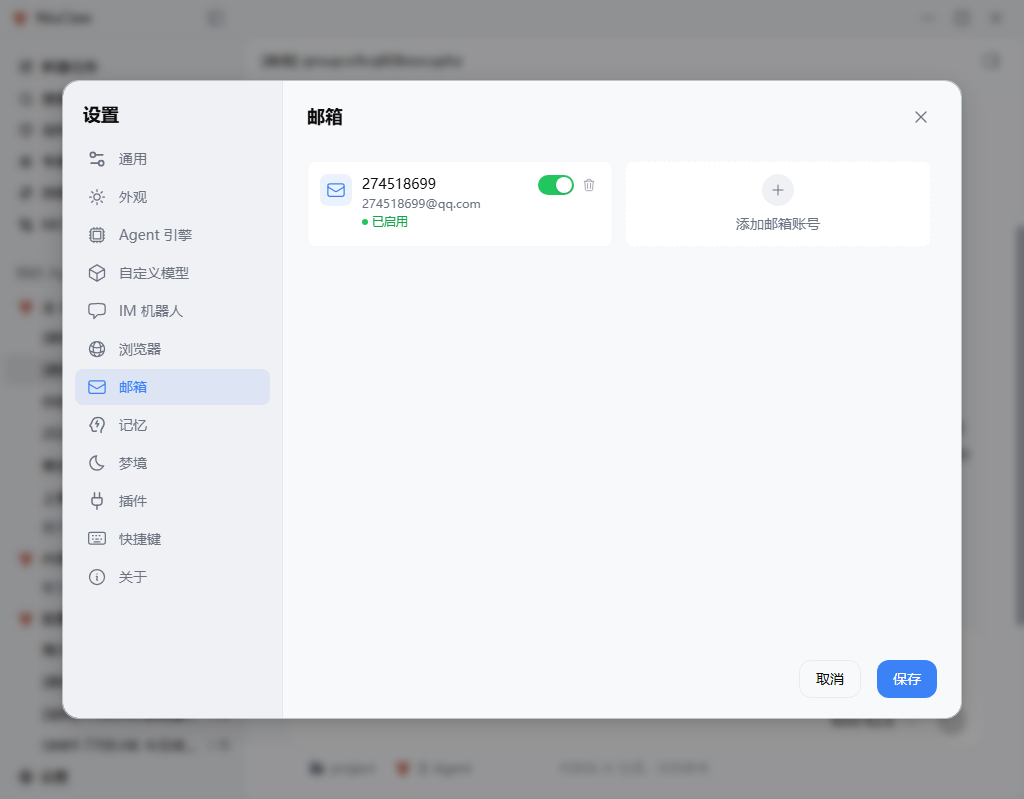
Add IMAP/SMTP accounts (QQ / 163 / Gmail / Outlook and other common services). Generally use authorization code rather than the login password; you can set a default account and confirm before sending. In conjunction with imap-smtp-email skills to send, receive, and organize.
Memory
Enabling long-term memory (e.g., MEMORY.md), write thresholds, injection count, entry management, and Embedding, etc. In OpenClaw mode, the engine documentation prevails: it focuses on file-based long-term memory retrieval; some detailed entry UIs may indicate they only apply to other engines.
Dream
Background memory consolidation: run "light sleep / deep sleep / REM" and other processes according to frequency/time zone, and generate a Dream Diary, organizing high-value information into long-term memory. Suitable for scenarios where you want the assistant to "understand you better the more you use it".
Plugins
Install, enable/disable OpenClaw plugins (npm / ClawHub / Git / local), and sync with the OpenClaw side.
Shortcuts
View and change keybindings: new conversation, switch sidebar view, Artifacts panel, open settings tabs, etc. Some shortcuts will not trigger when focus is in the input box.
About
Version and check for updates, contact email, user manual / official community / terms of service links, export logs, etc.
Artifacts and result preview
When executing web, file, or visualization-type tasks, you can open in the conversation sidebar Artifacts panel: preview HTML, source code, files, or embedded browsing results, and support downloading, opening the containing folder, etc. Default shortcuts can be viewed in "Shortcuts" (commonly the binding to toggle the Artifacts panel).
Typical workflows
1. Office three-piece suite
Enable docx / xlsx / pptx, clearly state the requirements and asset paths, for example: "Based on 项目周报.xlsx generate a one-page PPT and an email draft".
2. Multi-Agent division of labor
- Main Agent: Daily Chores
- "Content Creation" Agent: only enable writing and trending-topic-related skills
- "Stock Assistant": only enable stock skills + scheduled review
3. IM + Scheduling
In "Stock Assistant", configure WeChat group binding, then create a daily market-close scheduled task so results are automatically sent back to the group; you can review history on desktop at any time.
4. Expert kits out of the box
Install the "Product Manager" or "Marketing" kit → select it in a new task → produce requirements documents or a content calendar according to the kit workflow.
5. MCP integration with enterprise data
Install the required services in the MCP marketplace → query structured data directly in the conversation, reducing manual copying.
Safety and usage notes
- Content is generated by AI, for reference only; For decisions involving investment, legal, medical, etc., please verify on your own; stock-related analysis does not constitute investment advice
- The Agent can access local files and browser: please restrict the working directory and use high-privilege operations with caution
- Before installing third-party skills or MCP, confirm the source; you can use skill-review-related capabilities for initial screening
- API Key is only stored in local configuration; do not send it to others or commit it to a public repository
- If the engine is abnormal, first use Settings → Agent Engine → One-click repair, then try restarting the app
Appendix: Shortcuts and contact information
Common shortcuts
- Open settings: Ctrl+,
- New conversation / sidebar view / Artifacts: See "Settings → Shortcuts"
Get help
- User manual: https://www.bixinai.cn/NiuClaw/user_guide/NiuClaw_user_manual.html
- Official community: https://www.bixinai.cn/NiuClaw/user_community/NiuClaw_user_community.html
- Contact email:NiuClaw@binxinai.cn(consistent with the client's "About" page)
- Terms of service: https://www.bixinai.cn/NiuClaw_service.html
Release notes
This manual is organized based on the current NiuClaw client interface and features. If menu names or entries differ slightly from your installed version, refer to the actual interface in the software.